Instagram Follower Checker
💡 How to get your Followers & Following files
Step 1: Open Settings
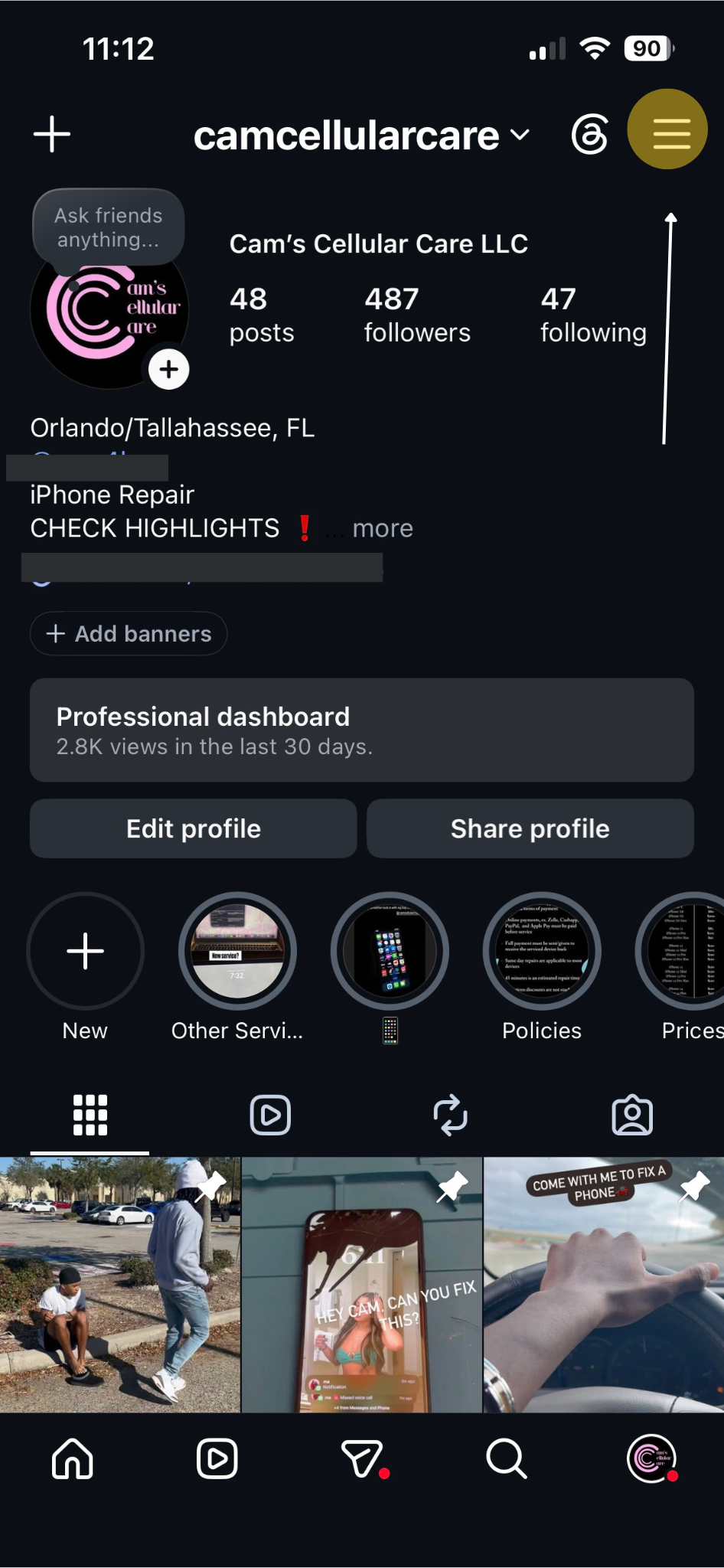
Go to your Instagram profile page, tap the Menu (three bars) in the top right corner, and select Settings and activity.
Step 2: Enter Accounts Center
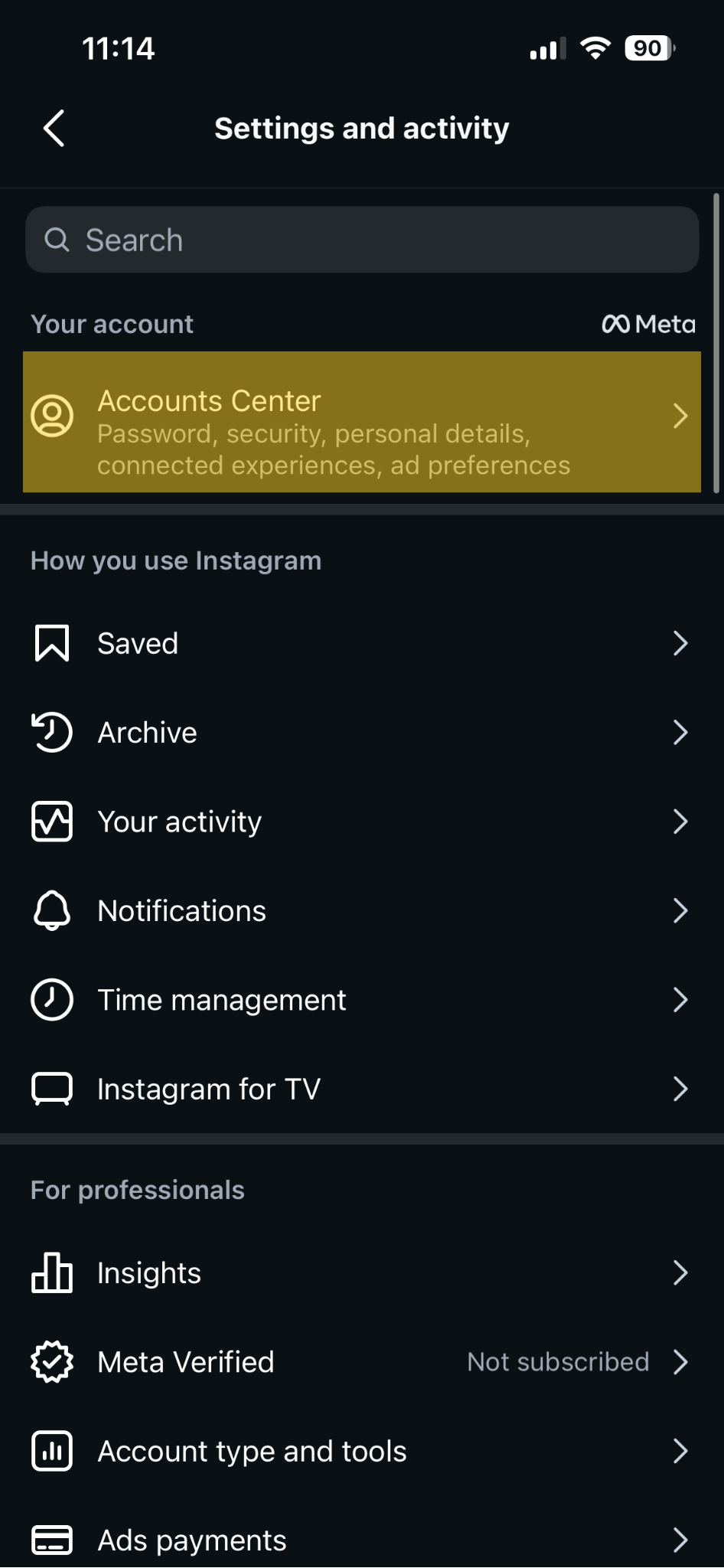
Tap on the Accounts Center banner at the top of the settings menu.
Step 3: Your Information and Permissions
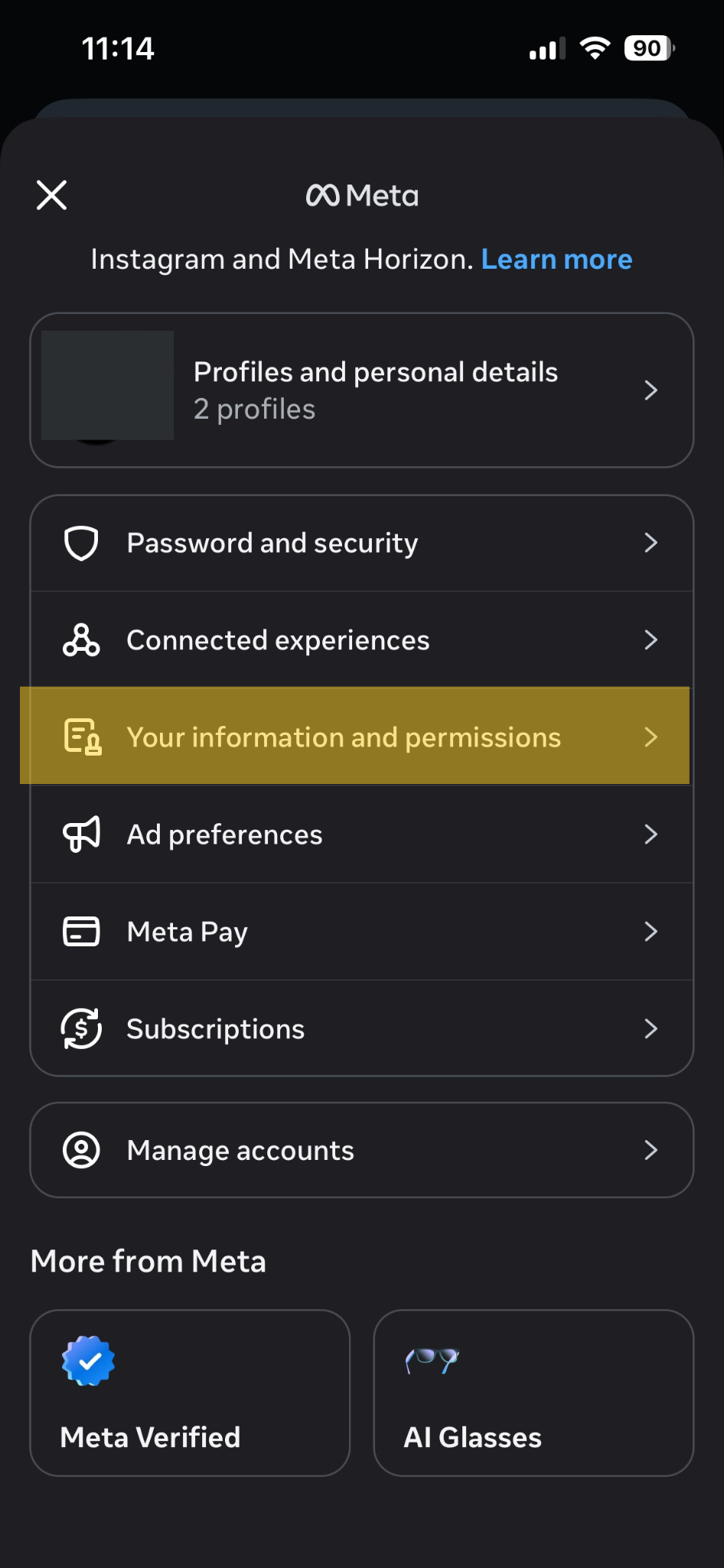
Scroll down under Account Settings and select Your information and permissions.
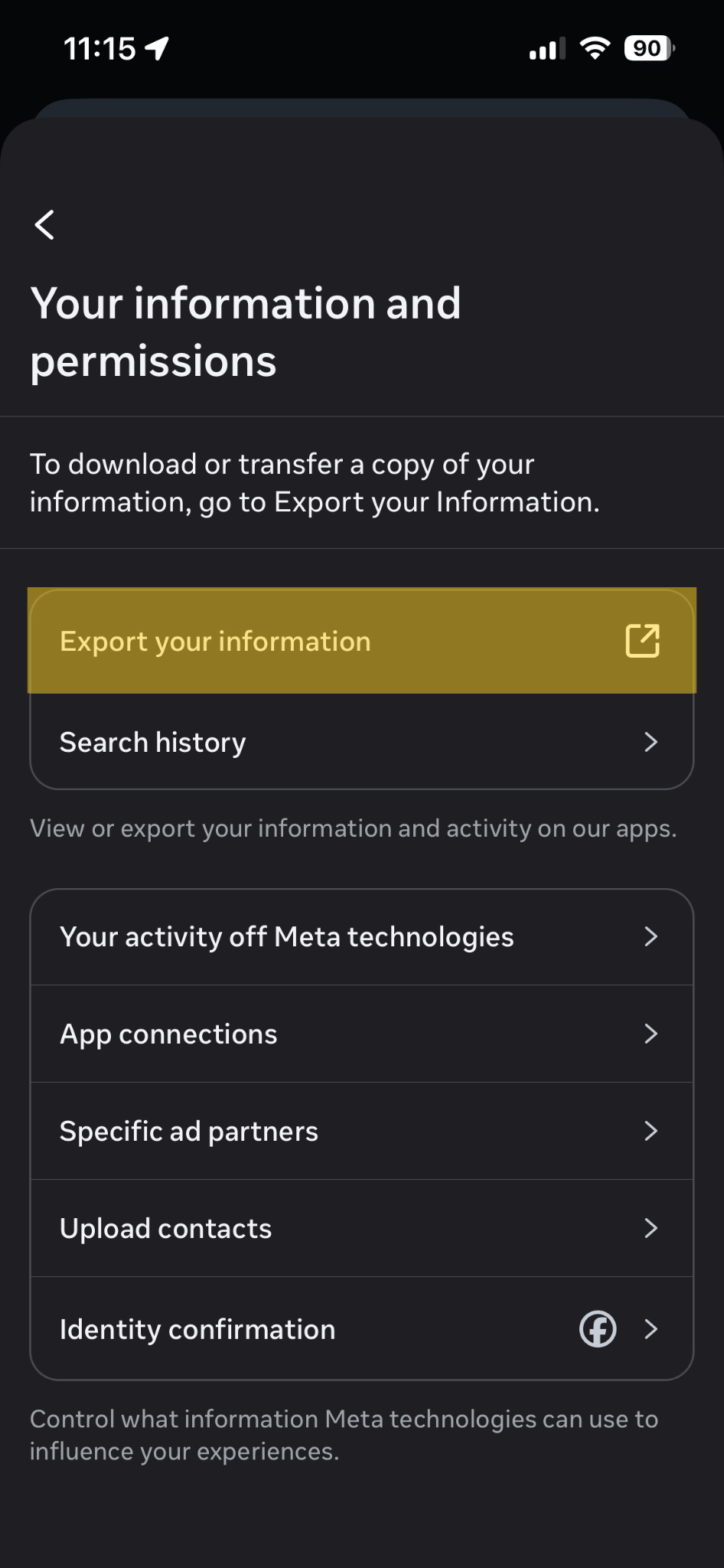
Step 4: Select Export Information
Tap on Export your information to begin requesting your data backup file.
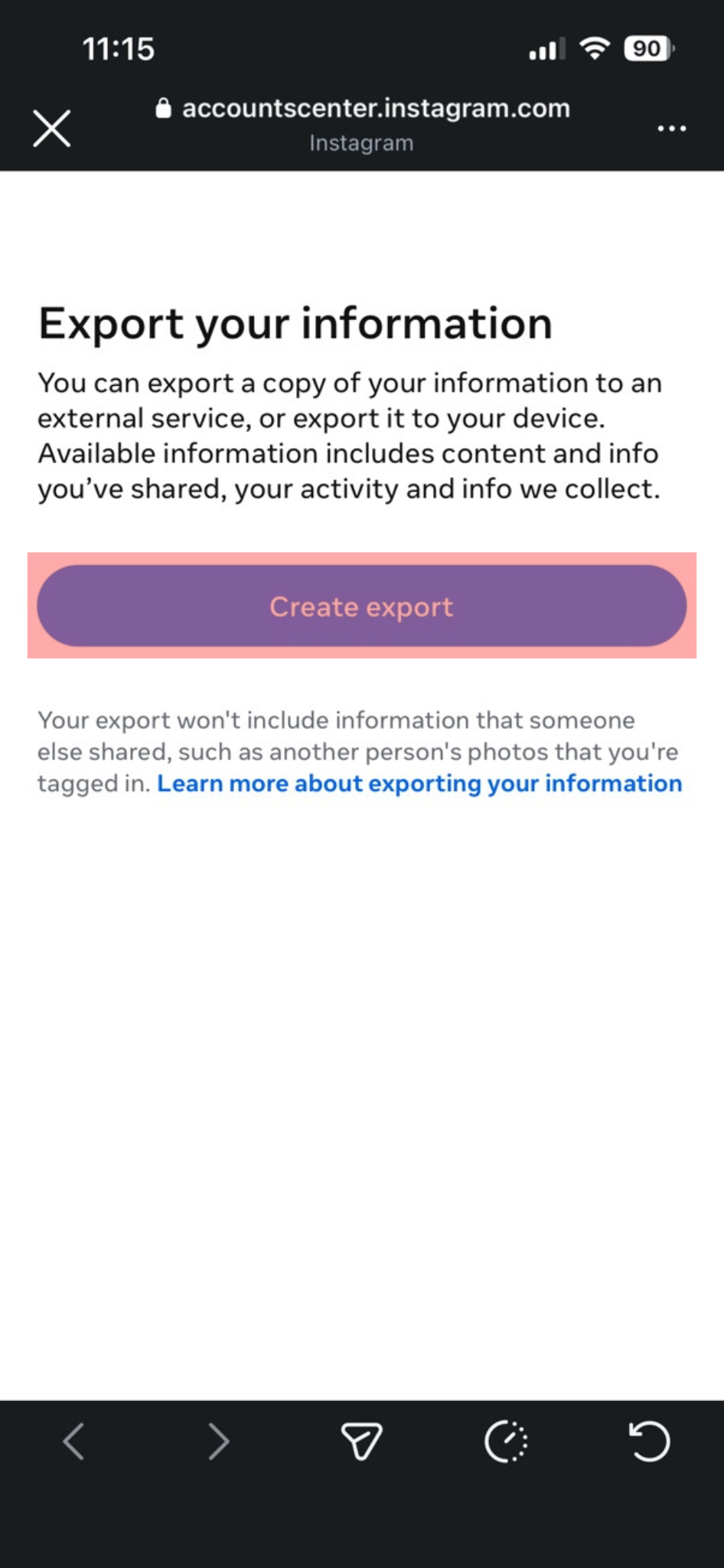
Step 5: Create Export
Tap the pink/purple button labeled Create export.
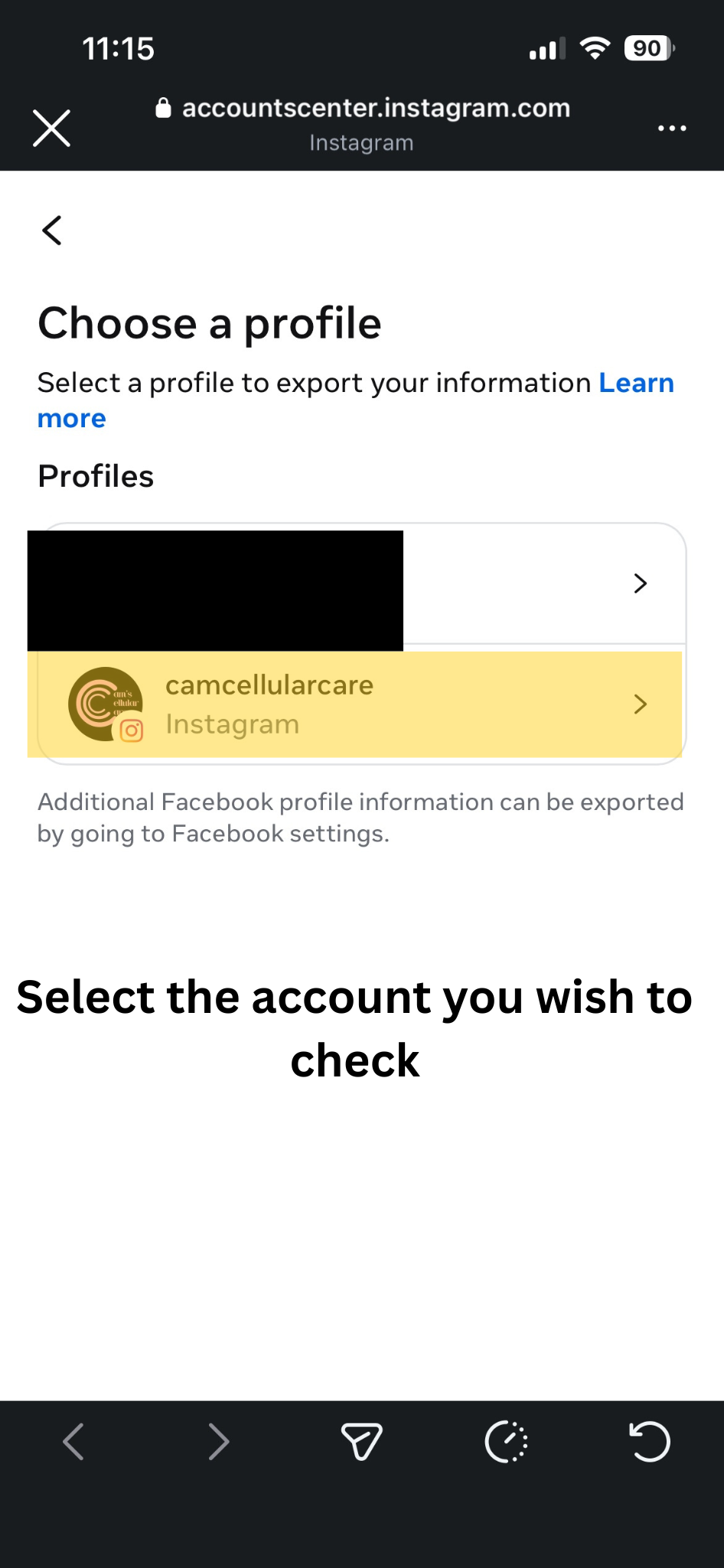
Step 6: Select Your Account
Choose the specific Instagram profile you want to verify from your connected account profiles list.
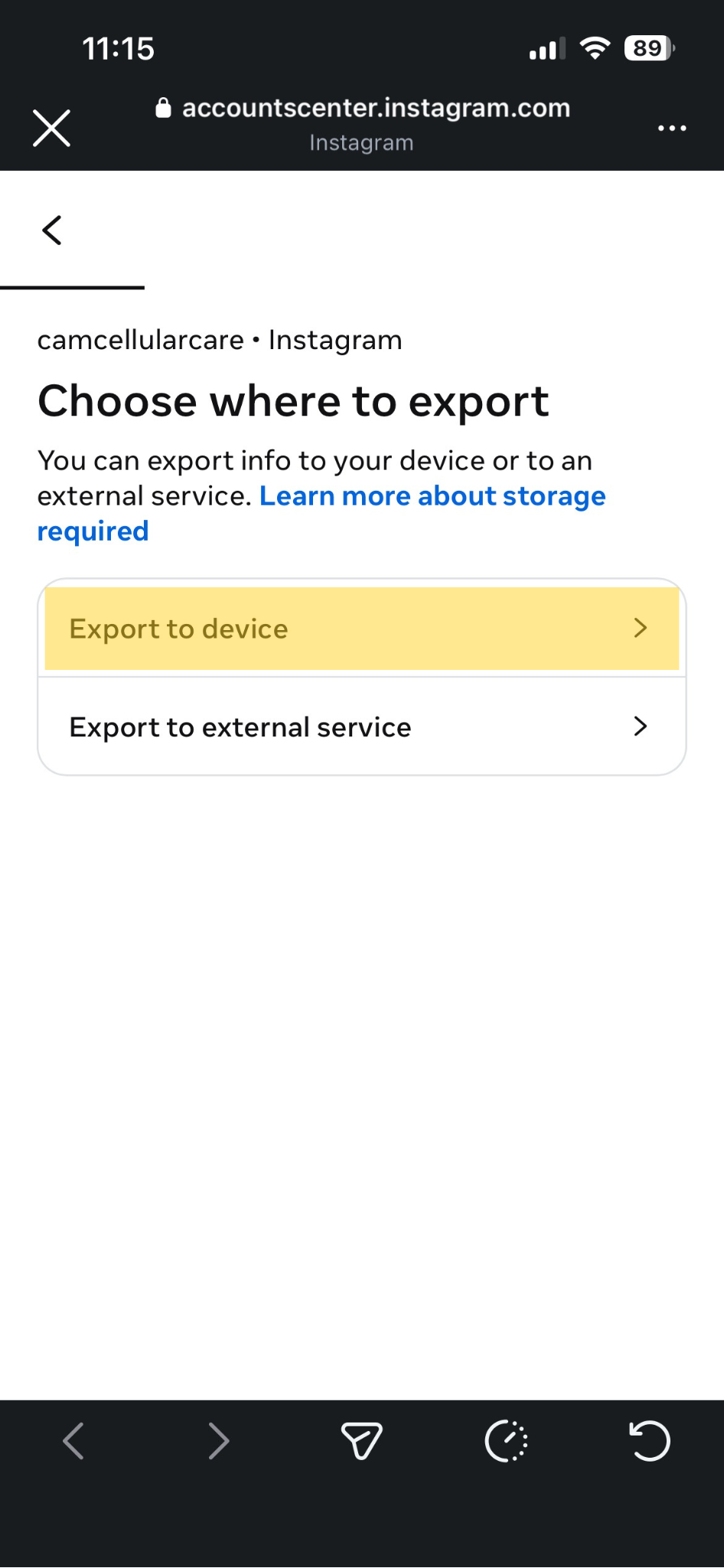
Step 7: Choose Destination
Select Export to device so the file downloads directly onto your smartphone or computer layout.
Step 8: Configure Export Settings
Before pressing start, check your configurations. Change the Format to HTML. You can also click Customize information to optimize the size.
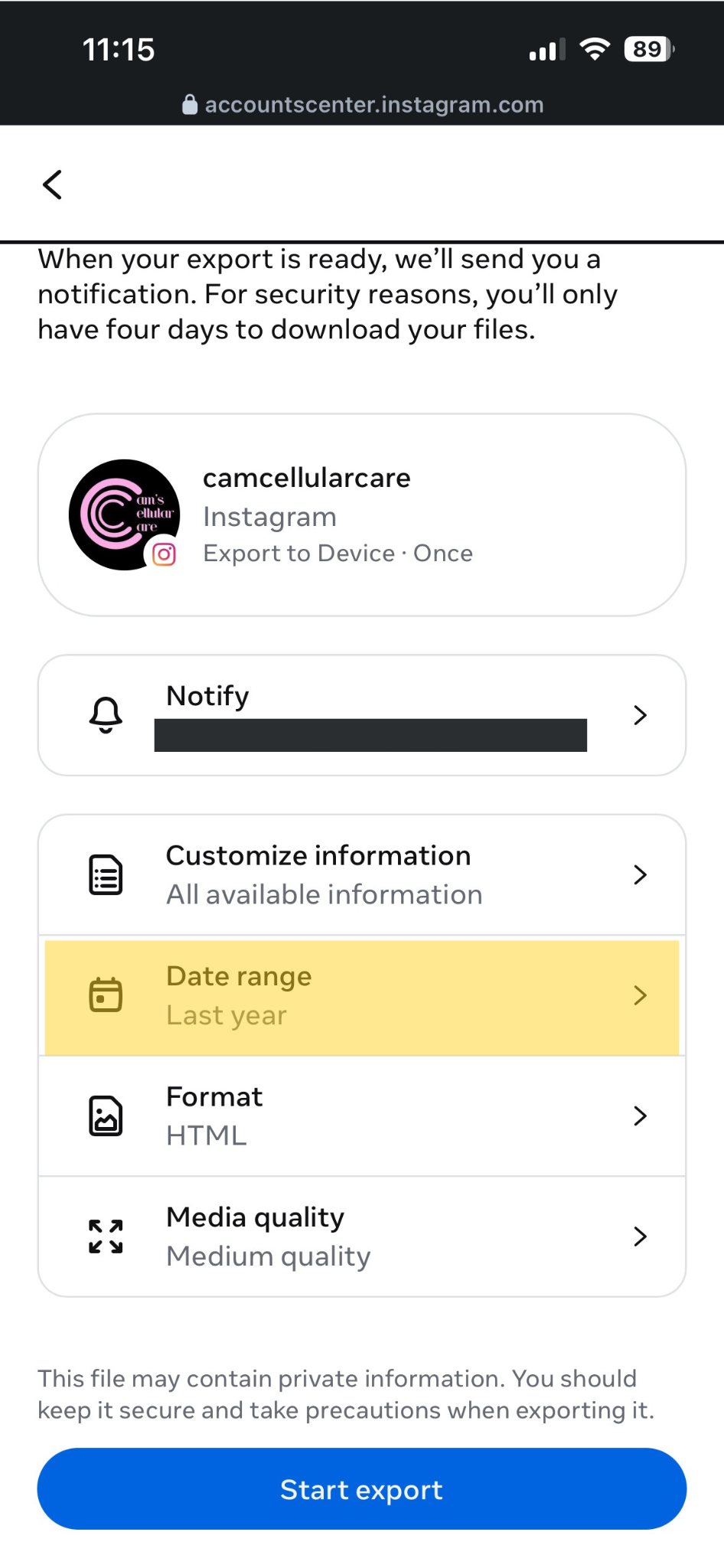
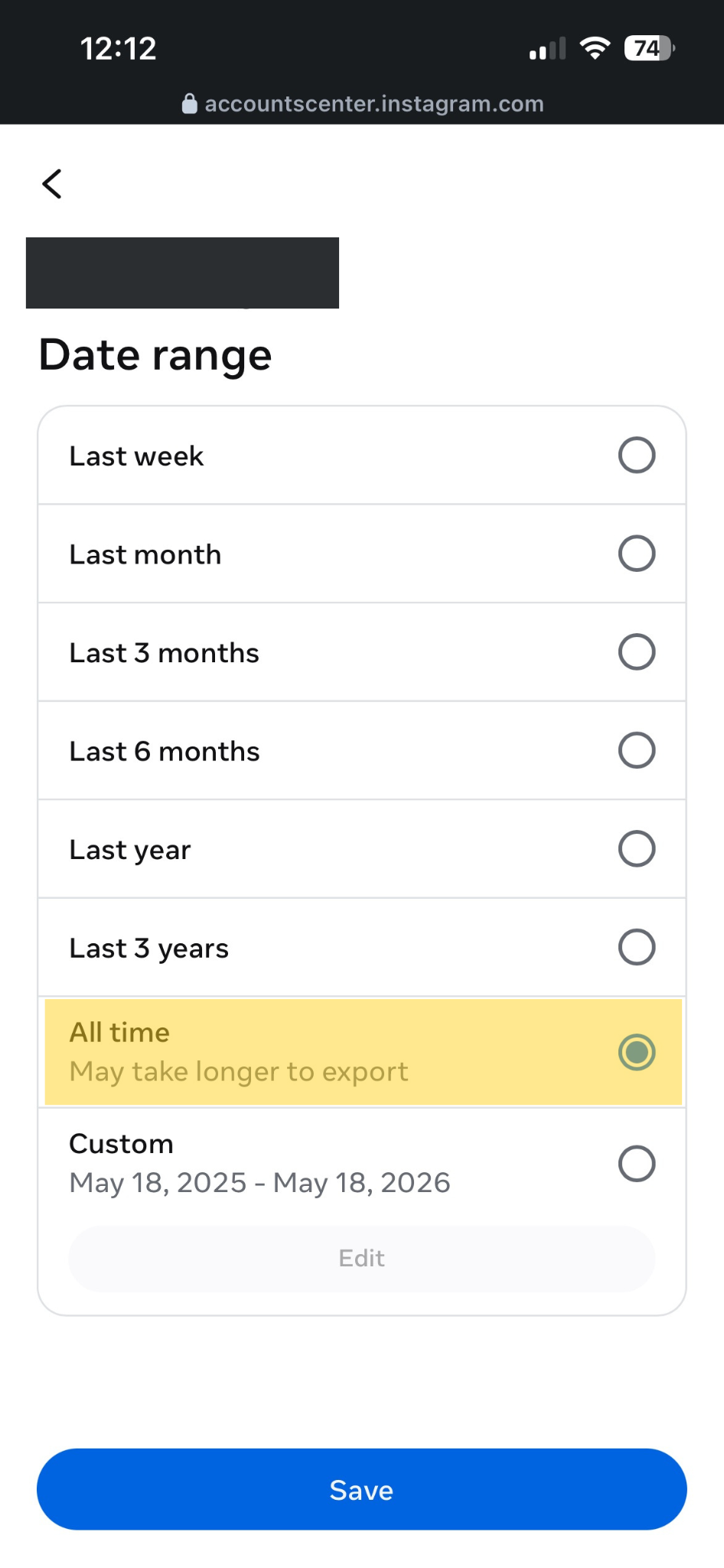
Step 9: Choose Date Range
Make sure to change the Date range option to All time to ensure you gather every follower history trace accurately.
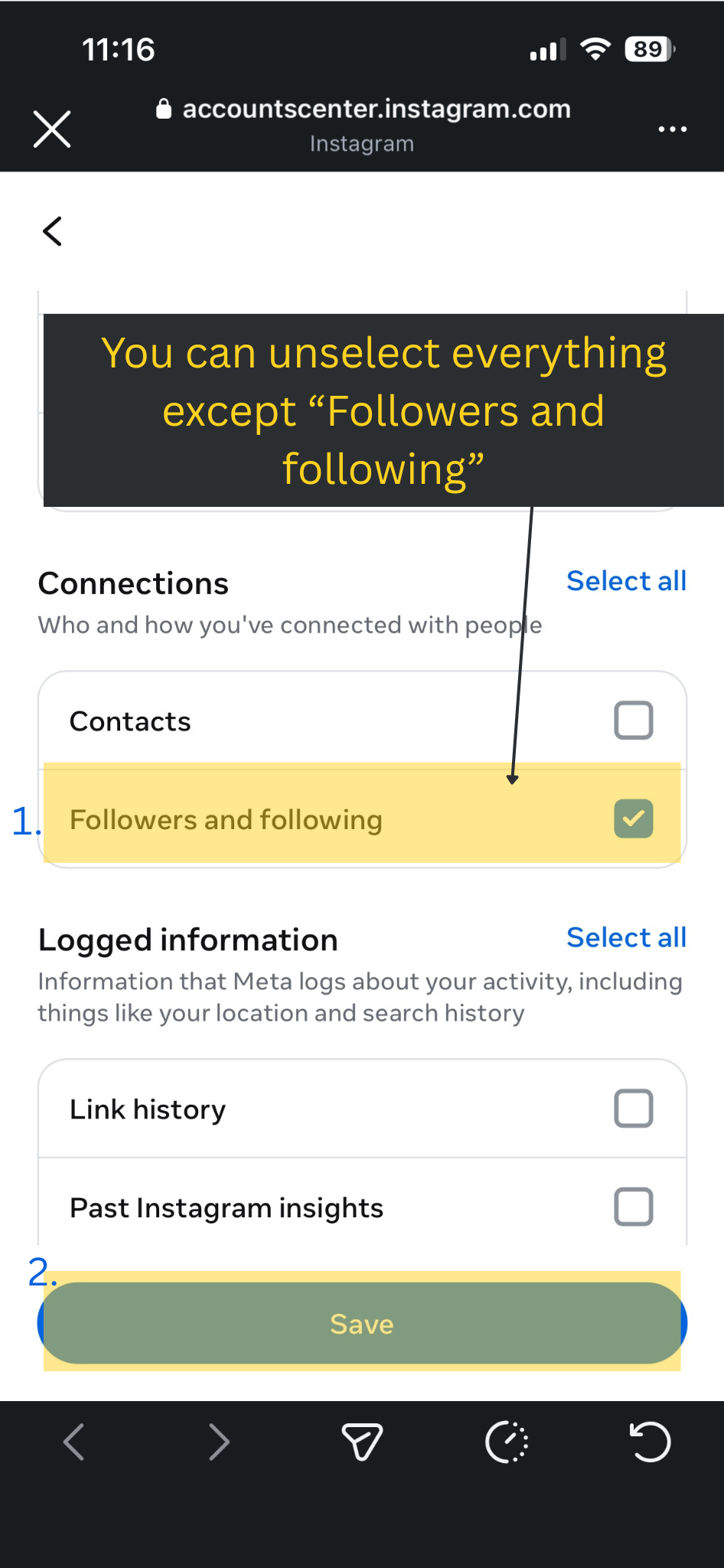
Step 10: Select Connections Data only
Uncheck all boxes except for Followers and following to make the file download almost instantly.
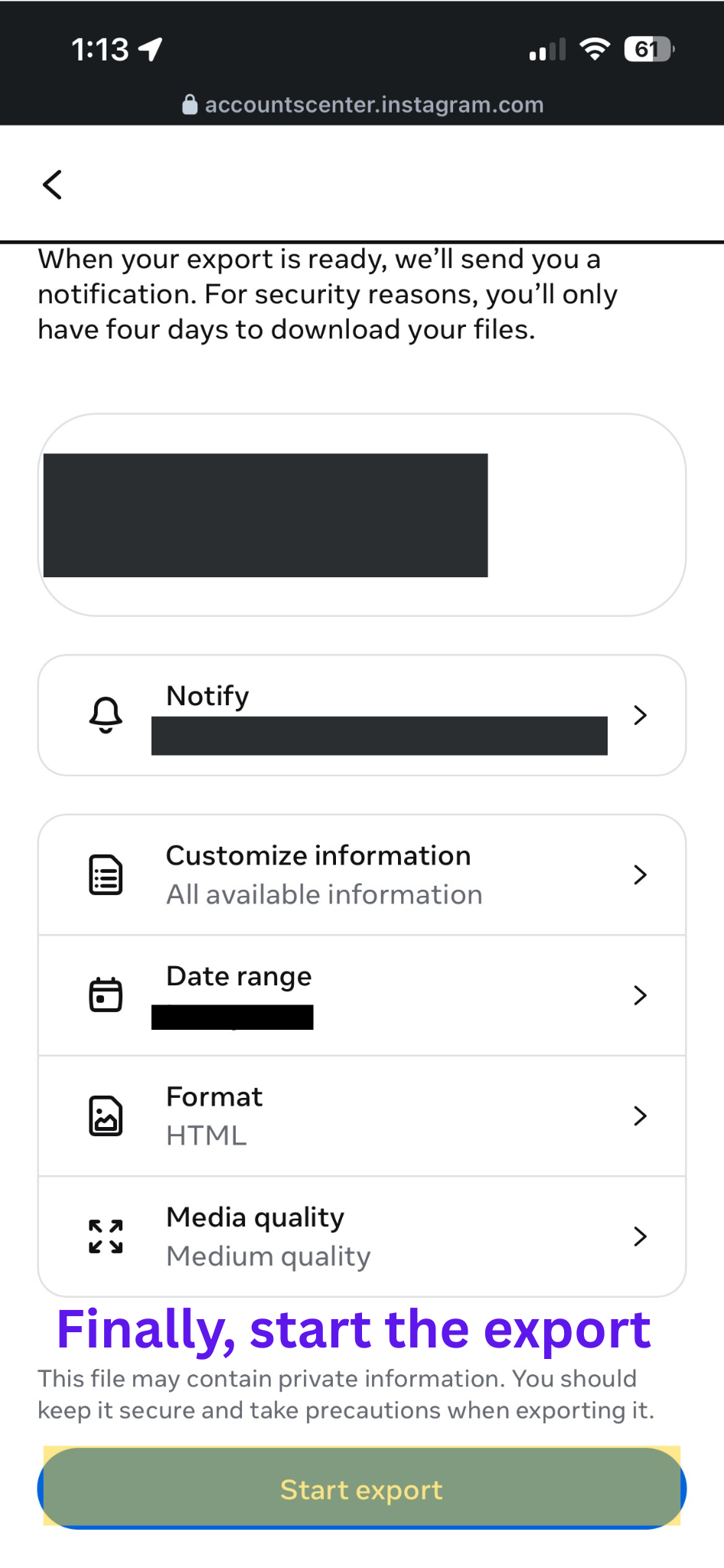
Step 11: Submit Your Request
Review your choices to confirm the format is HTML, Date range is All Time, and only Followers and Following is checked. Tap Submit request.
Step 12: Wait for Confirmation
Your request will show as pending. Instagram will compile your data securely behind the scenes.
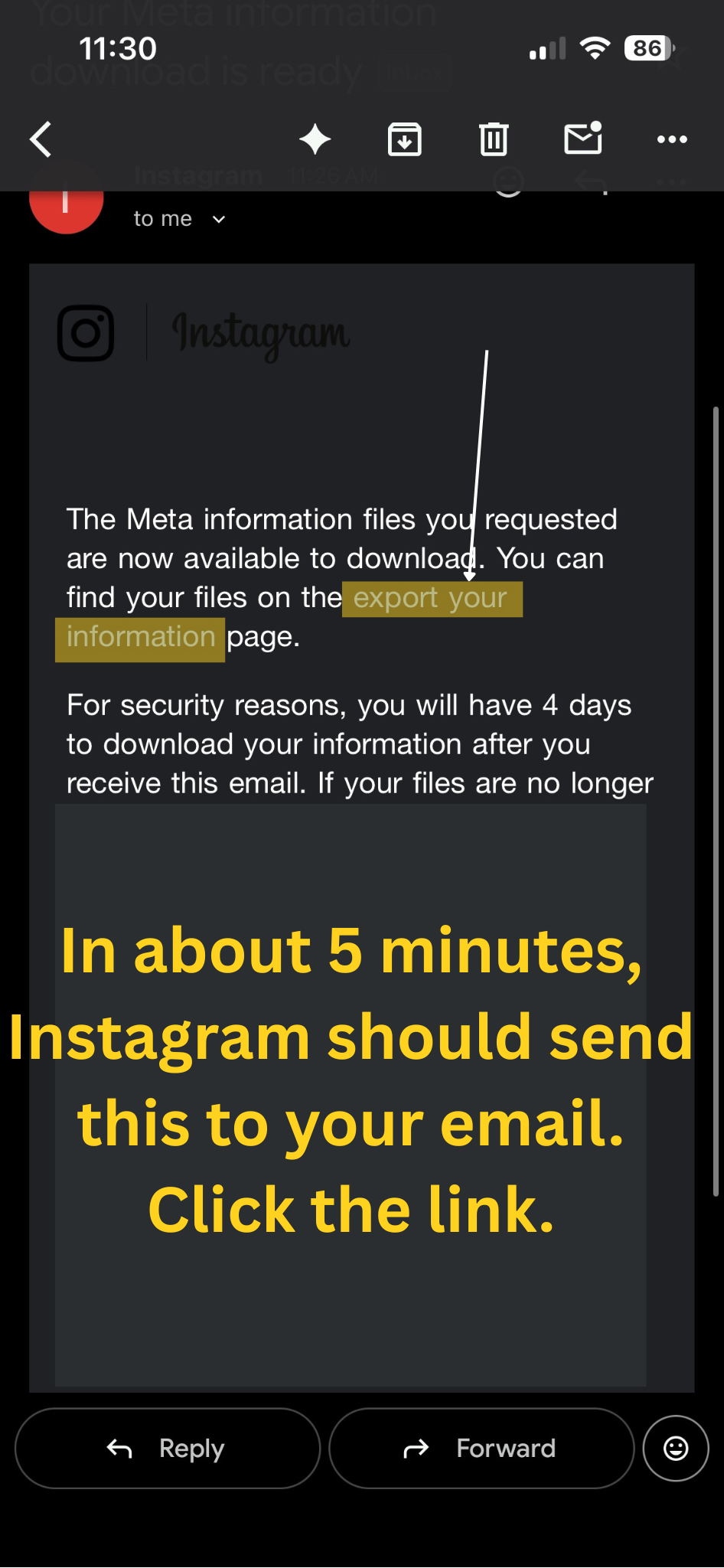
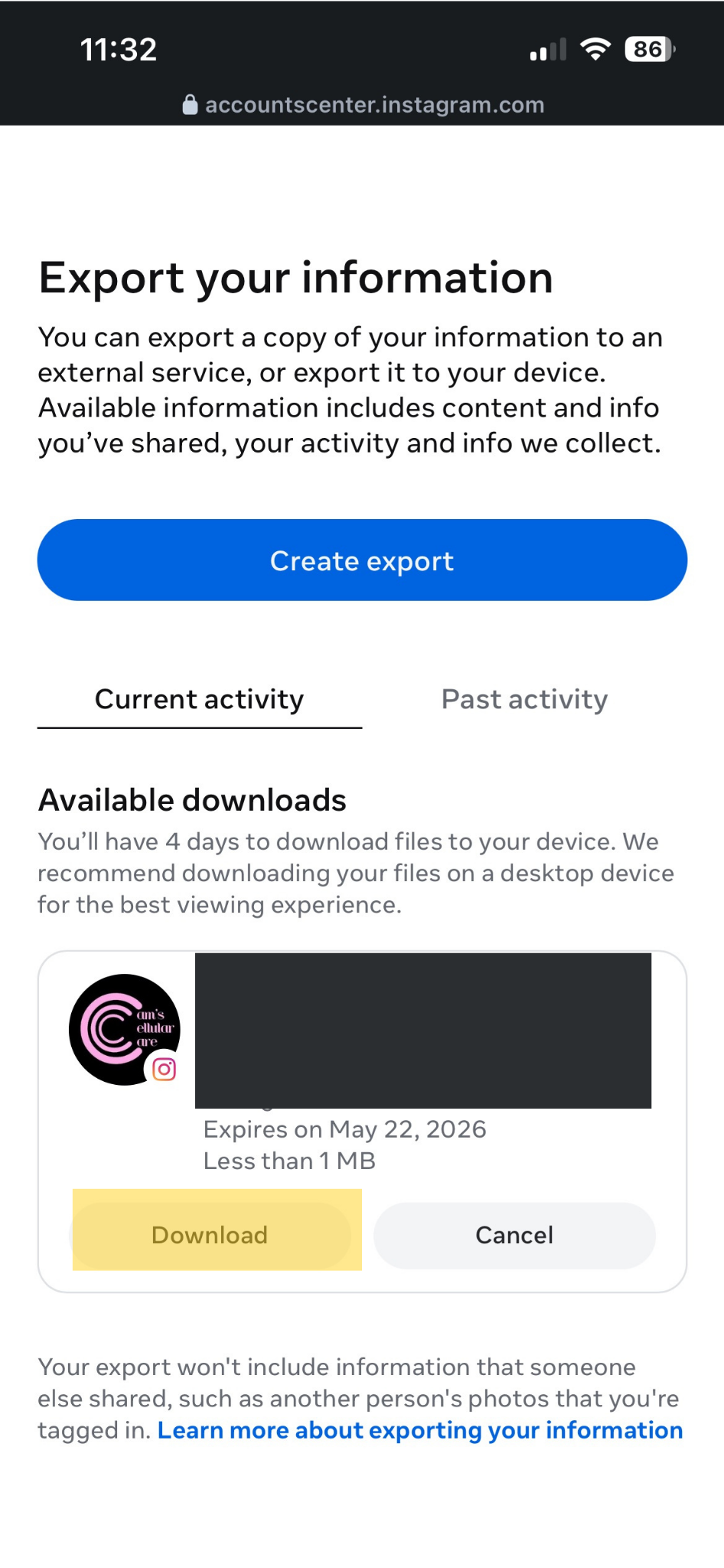
Step 13: Download Your Export
Once you get the notification or email that your file is ready, return to this screen and tap Download next to your requested files.
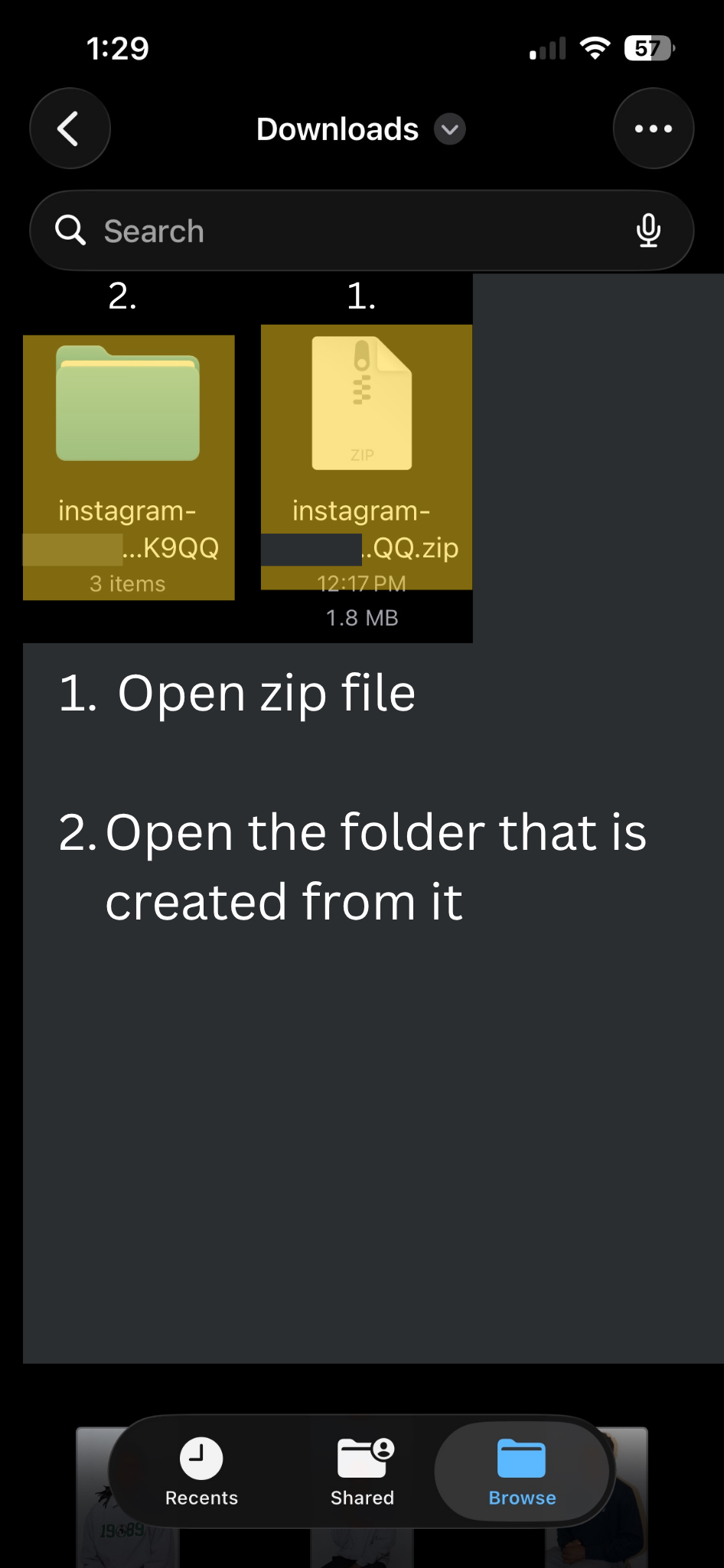
Step 14: Extract the Zip File
Locate the downloaded .zip archive in your files and extract/unzip it to access the folders inside.
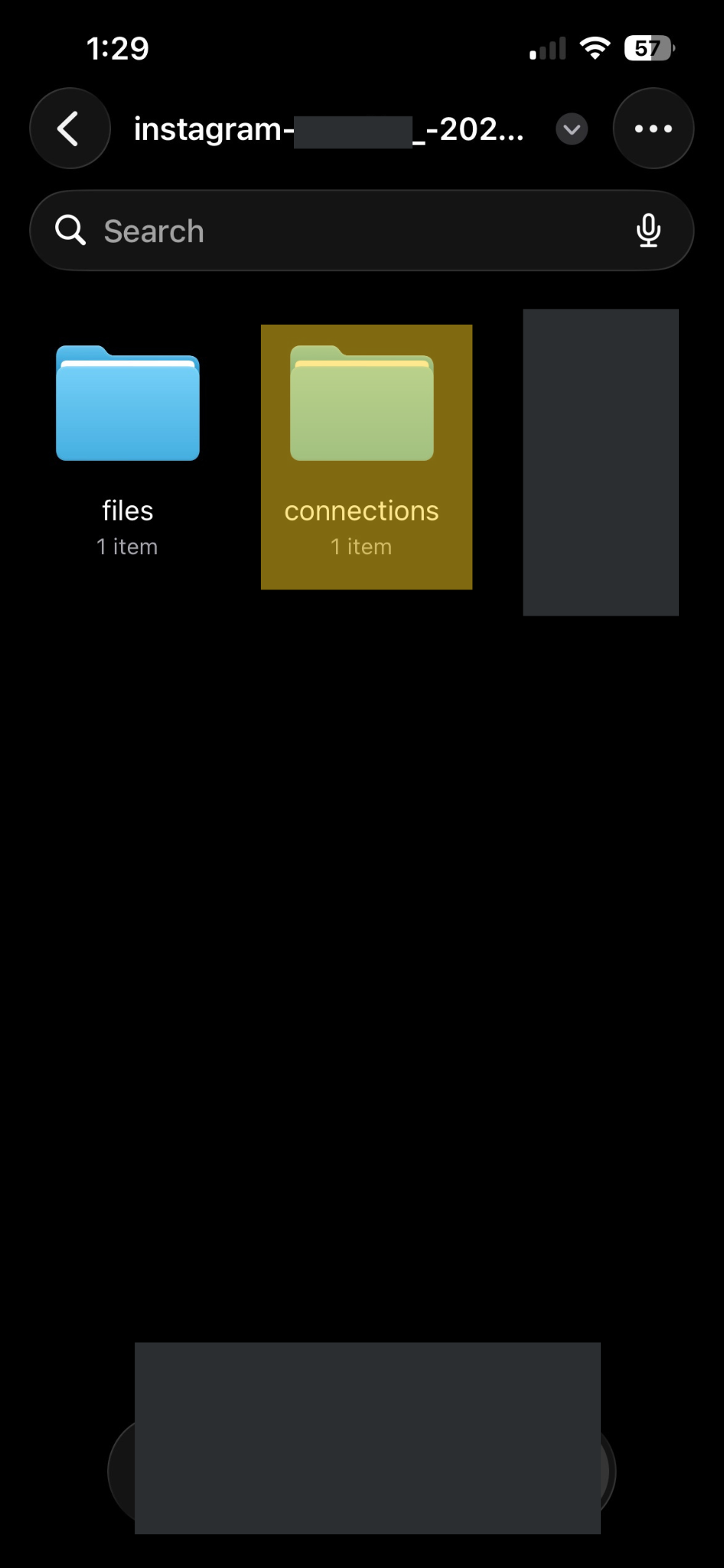
Step 15: Open the Connections Folder
Inside the extracted folder structure, navigate into the directory named connections.
Step 16: Open Followers and Following Folder
Inside connections, click on the subfolder explicitly named followers_and_following.
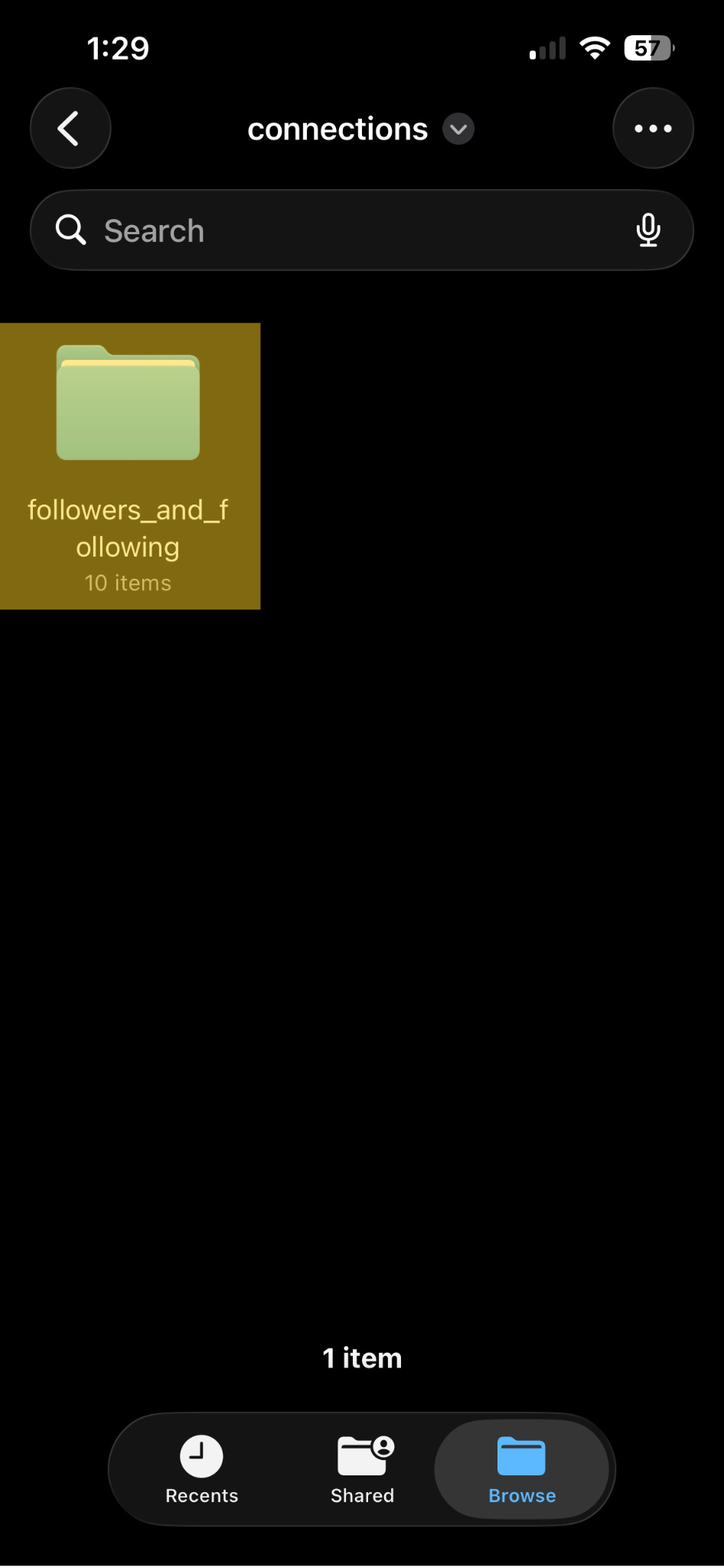
Step 17: Locate HTML Files
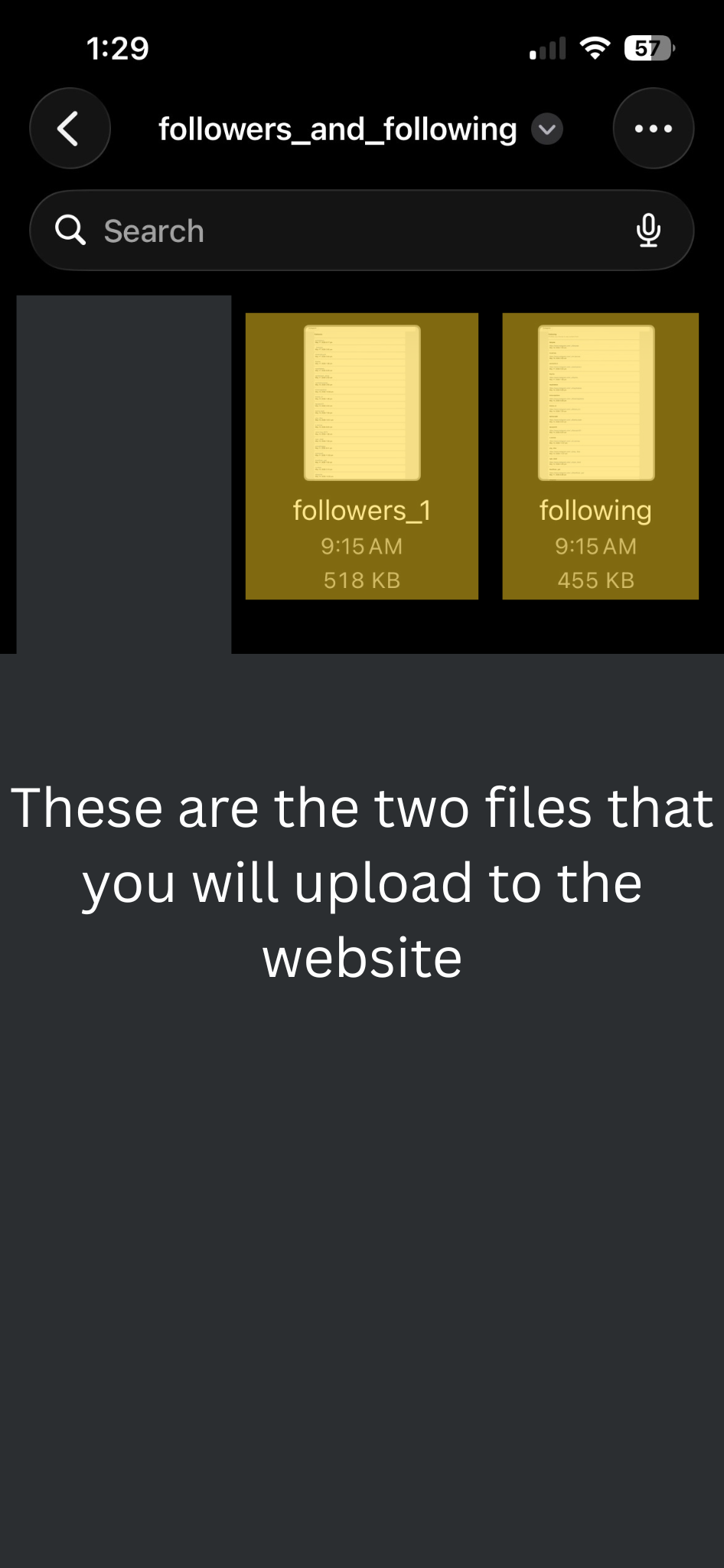
Here you will find your target files: following.html and followers_1.html. Upload or paste these files below to run your comparison!